If you’ve ever wished for a smarter, more collaborative way to write, edit, or brainstorm ideas, then ChatGPT Canvas might just be what you were waiting for. It’s a new feature built into ChatGPT that lets you work directly on documents, blog posts, or code together with AI in one clean workspace.
In this guide, I’ll show you how to use ChatGPT Canvas for free, what makes it different from normal chat mode, and how it can make your everyday tasks smoother and faster. Whether you’re a student, writer, or developer, you’ll see how this new tool fits perfectly into your workflow.
1. What Is ChatGPT Canvas?
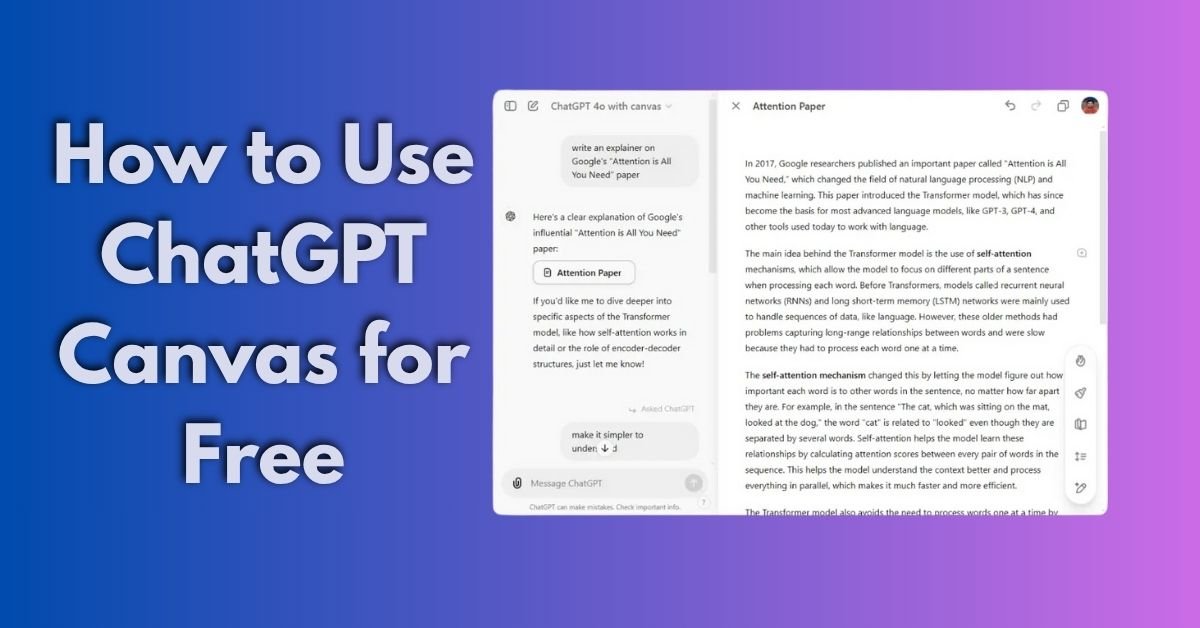
Before we get into how to use ChatGPT Canvas for free, let’s understand what it actually is. ChatGPT Canvas is like a digital workspace where you can edit text side by side with AI. Instead of typing long messages and waiting for replies, you can now see the content right in front of you and make live edits.
Think of it like working in Google Docs, but with ChatGPT helping you in real time. You can highlight a paragraph, ask the AI to improve it, rewrite sentences, or add new ideas all without switching tabs or copying text back and forth.
It’s especially handy for bloggers, content writers, students working on reports, and developers testing out code.
2. How to Use ChatGPT Canvas for Free
Now let’s go step by step on how to use ChatGPT Canvas for free. The Canvas feature is currently available to ChatGPT users directly from the ChatGPT web interface. If you don’t have access yet, don’t worry OpenAI is rolling it out gradually. Here’s how you can start:
- Go to chat.openai.com and log in with your account.
- Once you’re in, click on the “Canvas” or “Edit” icon on the left sidebar (you might see it appear as “new document”).
- Choose whether you want to write an article, edit text, or code something.
- The AI will open a new workspace where you can type or paste your content.
- Start editing, highlighting, and collaborating with ChatGPT directly.
That’s it! That’s basically how to use ChatGPT Canvas for free no need for extra downloads or paid tools.
3. Why Use ChatGPT Canvas Instead of Normal Chat?
When people first hear about Canvas, they wonder what’s the difference between this and normal ChatGPT chat?
The main difference is control. In Canvas, you get to see and edit the full text in a live editor. You can make changes yourself, and ChatGPT adapts around your edits. In the normal chat mode, you’re limited to suggestions and have to copy-paste responses manually.
Once you understand how to use ChatGPT Canvas for free, you’ll notice it feels more natural and efficient especially when you’re working on long documents or need to make quick adjustments.
Read Our Latest technology articles
4. 5 Ways ChatGPT Canvas Can Improve Your Workflow
Let’s look at the five main ways Canvas can make your daily work easier once you know how to use ChatGPT Canvas for free.
1. Faster Writing and Editing
If you write blogs, articles, or social posts, Canvas can save you a lot of time. You can ask it to rephrase, summarize, or expand your ideas without leaving the page.
You just highlight the text, right-click, and tell ChatGPT what you need — maybe “make this more engaging” or “rewrite in a simpler tone.” It instantly edits your text in place.
2. Team-Friendly Collaboration
Once you learn how to use ChatGPT Canvas for free, you’ll see how it feels like working with a co-writer. It’s perfect for teams or freelancers who want to draft and edit together in real time. You can make notes, ask for improvements, and keep all your ideas organized in one place.
3. Easier Content Structuring
Bloggers often spend a lot of time just planning their article layout. With Canvas, you can ask AI to suggest headings, rewrite intros, or fix formatting.
This way, even before you finish your draft, you already have a clean and SEO-friendly structure ready.
4. Helpful for Developers and Coders
Canvas isn’t only for writers. Developers can use it to test code snippets, debug errors, or generate quick templates.
If you know how to use ChatGPT Canvas for free, it can become a handy space for coding experiments without needing a heavy IDE setup.
5. Better Learning and Brainstorming
Students and learners can use Canvas for essay writing, note summarizing, and brainstorming ideas. You can paste your notes and ask ChatGPT to make them clearer or add examples.
It’s one of the most practical uses once you get the hang of how to use ChatGPT Canvas for free.
5. Tips to Get the Most Out of ChatGPT Canvas
Here are a few tips to make sure you’re using Canvas effectively:
- Use short, clear prompts. When asking ChatGPT to edit or add something, keep your instructions simple.
- Work section by section. Don’t try to edit a whole article at once; focus on one paragraph at a time.
- Ask for feedback. Canvas lets you experiment you can ask AI, “Does this sound clear?” or “Can you make this more formal?”
- Save drafts regularly. Since it’s an online tool, make sure you copy your progress or export your work after finishing.
Once you start experimenting, you’ll realize how to use ChatGPT Canvas for free is not just about saving money. It’s about improving how you create, think, and finish projects.
6. Who Should Try ChatGPT Canvas?
Pretty much anyone who writes, plans, or builds things online can benefit. Writers can use it for editing, marketers for content planning, developers for quick testing, and students for assignments.
The good part is you don’t need any paid version or plugin to get started. Knowing how to use ChatGPT Canvas for free already gives you access to professional-level features.
Final Thoughts
Learning how to use ChatGPT Canvas for free can change the way you work with text, content, and ideas. It’s like having a personal co-writer and editor who stays right beside you as you type.
Instead of switching between apps or waiting for responses, everything happens inside one neat space edit, review, and publish faster.
So if you haven’t tried it yet, head over to ChatGPT, open Canvas, and start experimenting. Once you see how it fits your workflow, you might never go back to the old chat mode again.